
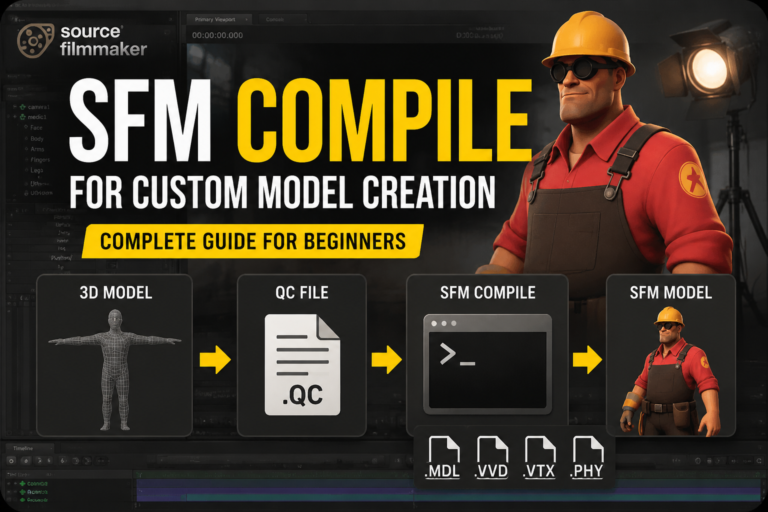
Source Filmmaker (SFM) is a powerful tool for creating cinematic animations using the Source Engine, but one of the crucial steps in the process is compiling 3D models. The SFM compile process converts 3D model files like OBJ or FBX into MDL files that can be read by Source Filmmaker. Without proper compilation, models may fail to load, display incorrectly, or lack the necessary textures and animations.
In this article, we’ll cover the essential tools and steps needed to compile 3D models for SFM, common errors you might encounter, and how to troubleshoot them. We’ll also explore advanced techniques to optimize your workflow.
What is SFM Compile?
The SFM compile process is an essential step in getting custom 3D models to work inside Source Filmmaker. SFM relies on the Source Engine, which requires a specific MDL file format for model assets. The compilation process combines mesh geometry, textures, bone structures, physics properties, and animation sequences into a single MDL file, making it compatible with Source Filmmaker.
During compilation, tools like Studiomdl and Crowbar are used to convert standard formats like OBJ or FBX into the Source Engine’s format. Without proper compilation, your models might display missing textures, incorrect geometry, or fail to load entirely.
Essential Software for SFM Compile
Studiomdl Command Line Utility
Developed by Valve, Studiomdl.exe is the core tool used for compiling models for Source Filmmaker. It runs through a command-line interface, reading QC script files and converting SMD files (model files) into MDL files.
You’ll need to navigate to the bin folder where Studiomdl is located in your Source Filmmaker installation. From there, you can run the compile process by executing the necessary command in the terminal. For beginners, the command-line interface might seem a bit intimidating, but once you understand the basic operations, it becomes a reliable method for compilation.
Crowbar Tool
For users who prefer a graphical user interface (GUI), Crowbar is an excellent alternative to using the command line. This tool simplifies the compilation process, especially when working with multiple models. Crowbar automatically processes the QC scripts and provides real-time feedback on the status of the compilation.
The SFM Compile Process Step-by-Step
1. Asset Preparation
Before you can begin compiling your 3D models for SFM, you need to prepare them properly. Here are the key steps:
- Polygon Count: Ensure your models have fewer than 60,000 triangles for optimal performance in SFM.
- Bone Hierarchy: Make sure your models follow the Source Engine bone conventions. If you’re working with characters, you’ll need a properly rigged skeleton.
- Physics Collision Models: For each model, you must prepare a simplified collision model that SFM will use for physics calculations.
- Textures: Ensure your textures are properly referenced. Missing textures can cause the model to display as a purple-and-black checkerboard pattern.
2. Creating QC Files
The QC file is crucial for defining the properties of your models. Here are the basic commands you’ll need in your QC script:
- $modelname: Specifies the output path and filename for the compiled model.
- $body: References the SMD mesh file containing your model’s geometry.
- $cdmaterials: Points to the directory where your textures are stored.
- $sequence: Defines animation sequences, including frame ranges for each animation.
- $collisionmodel: Specifies the simplified geometry used for the model’s physics collision.
Common SFM Compile Errors and Solutions
Even experienced creators encounter errors during the compilation process. Here are some common problems and how to troubleshoot them:
1. Missing Textures (Purple Checkerboard)
If your model shows a purple checkerboard pattern in SFM, it means the textures are missing. Double-check that the texture paths in your QC file match the actual file locations in your materials folder.
2. Scale Errors
Sometimes, models don’t appear in the viewport, or they are scaled incorrectly. This often happens due to issues in the model export settings. Make sure that your 3D software (e.g., Blender, 3ds Max) exports the model at the correct scale and that your SMD files are aligned properly.
3. Rigging Failures
If your character models fail to pose correctly or exhibit strange deformations, it’s often due to bone weight issues. Check the bone assignments in your 3D creation software to ensure the weights are applied properly, and that your rigging follows Source Engine conventions.
Advanced SFM Compile Techniques
1. Level of Detail (LOD) Systems
For performance optimization, experienced users implement LOD (Level of Detail) systems. This technique allows Source Filmmaker to switch between different versions of a model based on the camera’s distance from it, improving performance by reducing the number of polygons rendered.
2. Facial Flexes for Animation
Facial animation is critical for character models, and facial flexes allow for the creation of detailed expressions. You can create and export facial flexes using tools like Blender, which are then integrated into the QC script for facial animations.
3. Batch Compilation Scripts
If you’re working on multiple models, batch compilation can save a significant amount of time. Using Python scripts, you can automate the process of compiling several models at once, streamlining your workflow.
FAQs: SFM Compile
What file formats does SFM Compile accept?
SFM Compile processes SMD and DMX mesh files. After compilation, it outputs MDL, VVD, VTX, and PHY files needed by the Source Engine.
How long does SFM Compile take?
The compile time depends on the complexity of the model. Simple models may compile in seconds, while more complex characters with multiple animations and LOD levels might take several minutes.
Can SFM Compile work with Source 2?
No, SFM Compile targets the Source Engine, not Source 2. Source 2 requires a different set of tools and file formats for asset compilation.
Why do compiled models show purple textures?
Purple checkerboard patterns are a sign that texture paths are missing or incorrect. Verify that your QC script references the correct texture locations in the $cdmaterials directive.
Does SFM Compile require programming knowledge?
For basic models, no programming knowledge is needed. However, advanced features like batch compilation and automated tasks may benefit from some scripting knowledge.
