
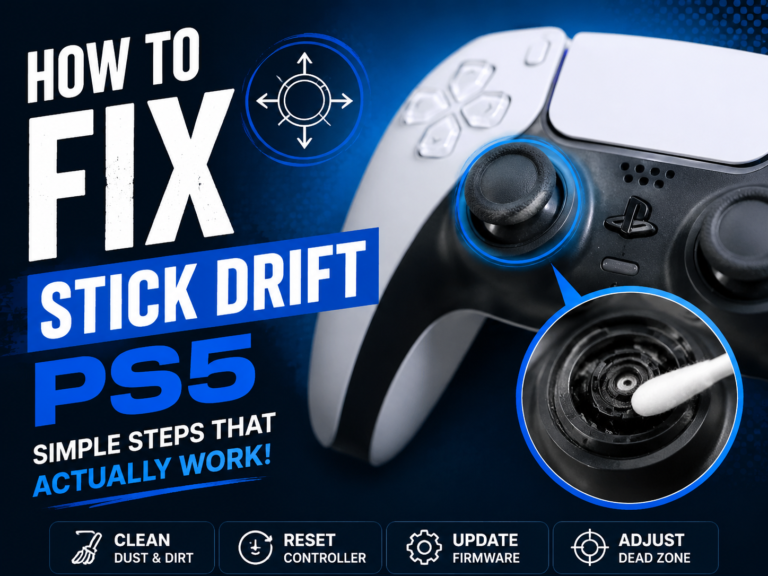
If your character moves on its own, your camera keeps spinning, or your aim slowly slides without touching the thumbstick, you are probably dealing with controller drift. The good news is that how to fix stick drift ps5 is not always complicated.
In many cases, stick drift happens because of dust, worn sensors, software bugs, or small calibration issues. You may not need to replace your DualSense controller right away.
This guide explains how to fix stick drift ps5 using simple, practical steps you can try at home before spending money on a new controller.
What Is PS5 Stick Drift?
Stick drift happens when your PS5 controller registers movement even when you are not touching the analog stick.
For example, your player may slowly walk forward in a game, your camera may rotate by itself, or menus may move without input. It feels like the controller has a mind of its own.
This issue usually affects the left or right analog stick. The left stick often controls movement, while the right stick usually controls the camera or aiming.
A simple way to understand it is this: “Stick drift is like a shopping cart with a bad wheel — even when you try to keep it straight, it keeps pulling to one side.”
Common Signs of PS5 Stick Drift
Before learning how to fix stick drift ps5, make sure the problem is actually stick drift.
Here are the most common signs:
- Your character moves without touching the stick
- The camera turns slowly by itself
- Your aim pulls left, right, up, or down
- Menus scroll automatically
- The stick feels loose or less responsive
- Movement continues after you release the stick
If this happens in only one game, the issue may be related to that game’s settings. If it happens across several games or in the PS5 menu, the controller is likely the problem.
Why Does PS5 Stick Drift Happen?
PS5 stick drift can happen for several reasons. Some are easy to fix, while others may need repair or replacement.
The most common cause is dust or dirt inside the analog stick area. Tiny particles can interfere with the controller’s sensors and create false movement.
Another common reason is wear and tear. If you play fast-paced games like Call of Duty, Fortnite, FIFA, Apex Legends, or Rocket League, the analog sticks work hard every day.
Over time, the internal parts can wear down. Once that happens, cleaning may help for a while, but it may not completely solve the problem.
Software issues can also cause drifting. A controller update, console bug, or connection problem may make the input behave strangely.
That is why the best way to approach how to fix stick drift ps5 is to start with the easiest fixes first.
Quick First Check: Is It the Controller or the Game?
Before opening anything or buying tools, test your controller in different places.
Try using the controller in the PS5 home menu. Move around slowly and see if the cursor moves by itself.
Then test it in two or three different games. If the drift appears everywhere, the controller is likely causing the issue.
If drift only happens in one game, check that game’s controller settings. Some games allow you to adjust dead zones, sensitivity, and input response.
“A five-minute test can save you from fixing the wrong problem.”
Restart Your PS5 and Controller
The simplest fix is often the most overlooked. Restarting your PS5 can clear temporary bugs that may affect controller input.
Turn off your PS5 completely. Do not just put it in Rest Mode. Wait for a minute, then turn it back on.
You should also turn off the controller. Hold the PS button, go to Accessories, select the controller, and turn it off. Then reconnect it.
This will not fix physical stick damage, but it can help if the drift is caused by a temporary software issue.
When people search for how to fix stick drift ps5, this should be the first step because it is quick, safe, and free.
Reset the PS5 DualSense Controller
If restarting does not help, reset the controller. This can clear connection errors and restore the controller to a fresh state.
You will need a small pin, paperclip, or SIM eject tool.
Follow these steps:
- Turn off your PS5.
- Look at the back of the DualSense controller.
- Find the small reset hole near the Sony logo.
- Insert the pin and hold the button for about 5 seconds.
- Connect the controller to the PS5 using a USB cable.
- Press the PS button to pair it again.
After resetting, test the controller in the menu and in a game.
This is one of the easiest methods for how to fix stick drift ps5, especially when the problem starts suddenly.
Update Your PS5 Controller Firmware
Sony releases updates for the DualSense controller to improve performance and fix bugs. If your controller is outdated, updating it may help.
Connect your controller to the PS5 with a USB cable. If an update is available, your console should show a prompt.
You can also check your system software settings and make sure your PS5 is updated.
Keeping both the console and controller updated is important because controller problems are not always hardware-related.
Think of it like updating your phone. Sometimes the device is not broken; it just needs cleaner instructions.
Clean Around the Analog Sticks
Dust is one of the biggest reasons for stick drift. Cleaning around the analog sticks can often reduce or remove the problem.
Turn off the controller before cleaning. Do not clean it while it is powered on.
Use a soft microfiber cloth to wipe around the analog stick. Move the stick in all directions while cleaning the base area.
You can also use a soft brush to remove dust from the small gap around the stick.
Avoid pouring liquid directly on the controller. Too much moisture can damage the internal parts.
This step is especially helpful if you eat while gaming, play in a dusty room, or keep your controller uncovered.
Use Compressed Air Carefully
Compressed air can help remove dust trapped inside the analog stick area.
Hold the controller with the stick facing slightly downward. This helps dust fall out instead of going deeper inside.
Move the stick around and spray short bursts of air around the base. Do not hold the air too close and do not spray for too long.
Use short, controlled bursts only. The goal is to loosen dirt, not freeze or damage the parts.
This method is a popular answer to how to fix stick drift ps5 because it is simple and does not require opening the controller.
Try Isopropyl Alcohol for Deeper Cleaning
If dust cleaning does not work, isopropyl alcohol may help. Use 90% or higher isopropyl alcohol if available because it evaporates quickly.
Turn off the controller completely. Lightly dampen a cotton swab with alcohol. Do not soak it.
Clean around the base of the analog stick while moving the stick in circles. Let the controller dry fully before turning it back on.
Wait at least 10 to 15 minutes before testing it again. If you used too much liquid, wait longer.
This method can help remove grime or sticky residue. However, it will not repair a worn-out sensor.
“Cleaning can fix dirt problems, but it cannot reverse heavy wear inside the controller.”
Adjust Dead Zone Settings in Games
Some games allow you to adjust the controller dead zone. The dead zone is the small area where stick movement is ignored.
If your controller has minor drift, increasing the dead zone can stop the game from reacting to tiny unwanted movements.
This is not a full repair, but it can make the controller usable again.
Look for settings such as:
- Controller dead zone
- Stick dead zone
- Input threshold
- Aim response
- Look sensitivity
Increase the dead zone slightly and test the result. Do not raise it too much, or your controls may feel slow.
This is a great fix for shooting games, racing games, and sports games where small stick movement matters.
Turn Off and Reconnect Bluetooth
Sometimes wireless connection issues can cause input problems. Disconnecting and reconnecting the controller may help.
Go to your PS5 settings and remove the controller from Bluetooth accessories. Then connect it again using a USB cable.
You can also test the controller while connected with a cable instead of wireless mode.
If the drift disappears when wired, the issue may be related to wireless interference or connection stability.
Keep your PS5 away from devices that may cause signal interference, such as routers, wireless speakers, and other Bluetooth devices.
Test Another Controller
If you have another DualSense controller, compare both controllers on the same console and same game.
If only one controller drifts, the problem is with that controller. If both controllers behave badly, the issue may be game settings, console software, or system configuration.
This test is simple but very useful.
When learning how to fix stick drift ps5, testing another controller helps you avoid wasting time on the wrong fix.
Check for Physical Damage
Look closely at the analog sticks. If the stick feels loose, tilted, stuck, or rough, the problem may be physical damage.
Controllers can develop problems after drops, heavy pressure, or long gaming sessions.
Press the stick gently and rotate it in circles. It should move smoothly and return to the center.
If it does not center properly, cleaning may not fully solve the issue.
Physical damage usually means the internal analog module is worn or broken. In that case, repair or replacement may be needed.
Avoid Pressing the Sticks Too Hard
Some games require clicking L3 or R3 often. Sprinting, crouching, melee attacks, and camera controls may put extra pressure on the sticks.
Pressing too hard can speed up wear over time.
Try using custom button settings if a game allows it. For example, you can move sprint or crouch to another button.
This does not fix current stick drift, but it can help prevent it from getting worse.
A controller is built for gaming, but it still has small mechanical parts. Treating it gently can make it last longer.
Open the Controller Only If You Are Comfortable
Some people fix stick drift by opening the controller and cleaning the internal analog module. However, this is more advanced.
Opening the controller may void warranty, damage clips, or cause other issues if done incorrectly.
If your controller is still under warranty, avoid opening it. Contact PlayStation support or the store where you bought it.
If the warranty is expired and you are comfortable with small electronics, you may consider internal cleaning or replacing the analog stick module.
But for most users, external cleaning, resetting, updating, and dead zone changes should come first.
Replace the Analog Stick Module
If nothing works, the analog stick module may need replacement. This is a hardware repair.
The analog stick module is the internal part that detects movement. When it wears out, it may send incorrect signals even when the stick is centered.
Replacing it usually requires opening the controller and soldering. This is not easy for beginners.
If you do not have repair experience, it is better to take the controller to a professional repair shop.
This is the final serious step in how to fix stick drift ps5 when all simple fixes fail.
Contact Sony or Use Warranty Support
If your DualSense controller is still under warranty, contact Sony or the retailer before trying risky repairs.
Warranty support may cover repair or replacement depending on your region, purchase date, and controller condition.
Keep your proof of purchase ready. Also explain the issue clearly: the controller has analog stick drift and registers movement without input.
Do not open the controller before checking warranty options. Once opened, warranty support may become harder.
This is often the smartest option if your controller is fairly new.
Should You Buy a New Controller?
Buying a new controller makes sense if the drift is severe, the controller is old, or repair costs are close to replacement cost.
However, do not rush into buying a new one if the drift is light. Try cleaning, resetting, updating, and adjusting dead zones first.
If you play daily, a new controller may feel better and more reliable. But if the issue is minor, a simple fix may give your controller more life.
The best choice depends on how bad the drift is and how much time you want to spend fixing it.
How to Prevent PS5 Stick Drift
Prevention is easier than repair. A few small habits can help your controller last longer.
Keep your controller covered when not in use. Dust can slowly build up around the sticks.
Wash your hands before long gaming sessions. Oils, crumbs, and sweat can get into the controller over time.
Avoid eating while gaming. Tiny crumbs are a common reason for sticky buttons and drifting sticks.
Do not press the analog sticks harder than needed. Gentle use can reduce wear.
Store the controller in a clean, dry place. Avoid leaving it on the floor, couch, or near pets.
Best Fixes to Try First
If you want the fastest path, try these fixes in order:
- Restart the PS5 and controller
- Reset the DualSense controller
- Update controller firmware
- Clean around the analog sticks
- Use compressed air
- Clean carefully with isopropyl alcohol
- Adjust in-game dead zone settings
- Test with another controller
- Check warranty or repair options
This order is safe because it starts with the easiest steps and avoids unnecessary risk.
Most users do not need to open the controller right away.
How Long Does a Stick Drift Fix Last?
It depends on the cause.
If the drift is caused by dust, cleaning may fix it for weeks, months, or even longer.
If it is caused by software, resetting or updating may solve it completely.
If the analog module is worn out, cleaning may only help temporarily. The drift may return after a few days or weeks.
That is why it is important to know whether the issue is dirt, software, or hardware wear.
A temporary fix is still useful, but it should not be confused with a permanent repair.
When Cleaning Is Not Enough
Cleaning helps when dirt is blocking or confusing the stick sensor. But if the internal part is damaged, cleaning will not fully repair it.
Here are signs cleaning may not be enough:
- Drift returns quickly after cleaning
- Stick feels loose or uneven
- Drift is very strong
- The controller has been dropped
- The issue happens in every game and menu
- Dead zone settings no longer help
At this point, repair or replacement is usually the better option.
Final Thoughts on How to Fix Stick Drift PS5
Learning how to fix stick drift ps5 can save you money and frustration. Start with the simple fixes first because many drift problems come from dust, software glitches, or minor calibration issues.
Restart the controller, reset it, update firmware, and clean around the analog sticks. If the drift is small, adjusting dead zone settings can also make games playable again.
If the problem keeps coming back, the analog stick may be worn out. In that case, warranty support, professional repair, or replacement may be the best choice.
The key is to move step by step. Do not open the controller unless you are confident or the warranty has already expired.
“A drifting controller can ruin a match, but the right fix can bring back smooth control without replacing everything.”
FAQs About How to Fix Stick Drift PS5
Can PS5 stick drift be fixed at home?
Yes, many PS5 stick drift problems can be fixed at home with basic steps like resetting the controller, updating firmware, cleaning the analog sticks, or adjusting dead zone settings.
However, if the internal stick module is worn out, you may need professional repair or replacement.
What is the fastest way to fix PS5 stick drift?
The fastest method is to reset the controller and clean around the analog sticks with compressed air or a soft brush.
If the drift is minor, increasing the in-game dead zone can also help immediately.
Does alcohol fix PS5 stick drift?
Isopropyl alcohol can help if the drift is caused by dirt, grime, or sticky residue. Use a small amount on a cotton swab and clean around the stick carefully.
Do not pour alcohol directly into the controller.
Why does my PS5 controller move by itself?
Your PS5 controller may move by itself because of dust, worn analog sensors, software bugs, or connection problems.
If it happens in multiple games and menus, it is likely controller drift.
Is PS5 stick drift permanent?
Not always. If the cause is dust or software, it may be fixed easily. If the analog stick module is worn or damaged, the drift may be permanent until the part is repaired or replaced.
Should I replace my PS5 controller if it has stick drift?
Try simple fixes first. If the controller is old, badly drifting, or no longer comfortable to use, replacing it may be worth it.
If it is under warranty, check support options before buying a new one.
